Live Radio on Website

The live radio needs to be activated before each game we have commentary and deactivated afterwards.
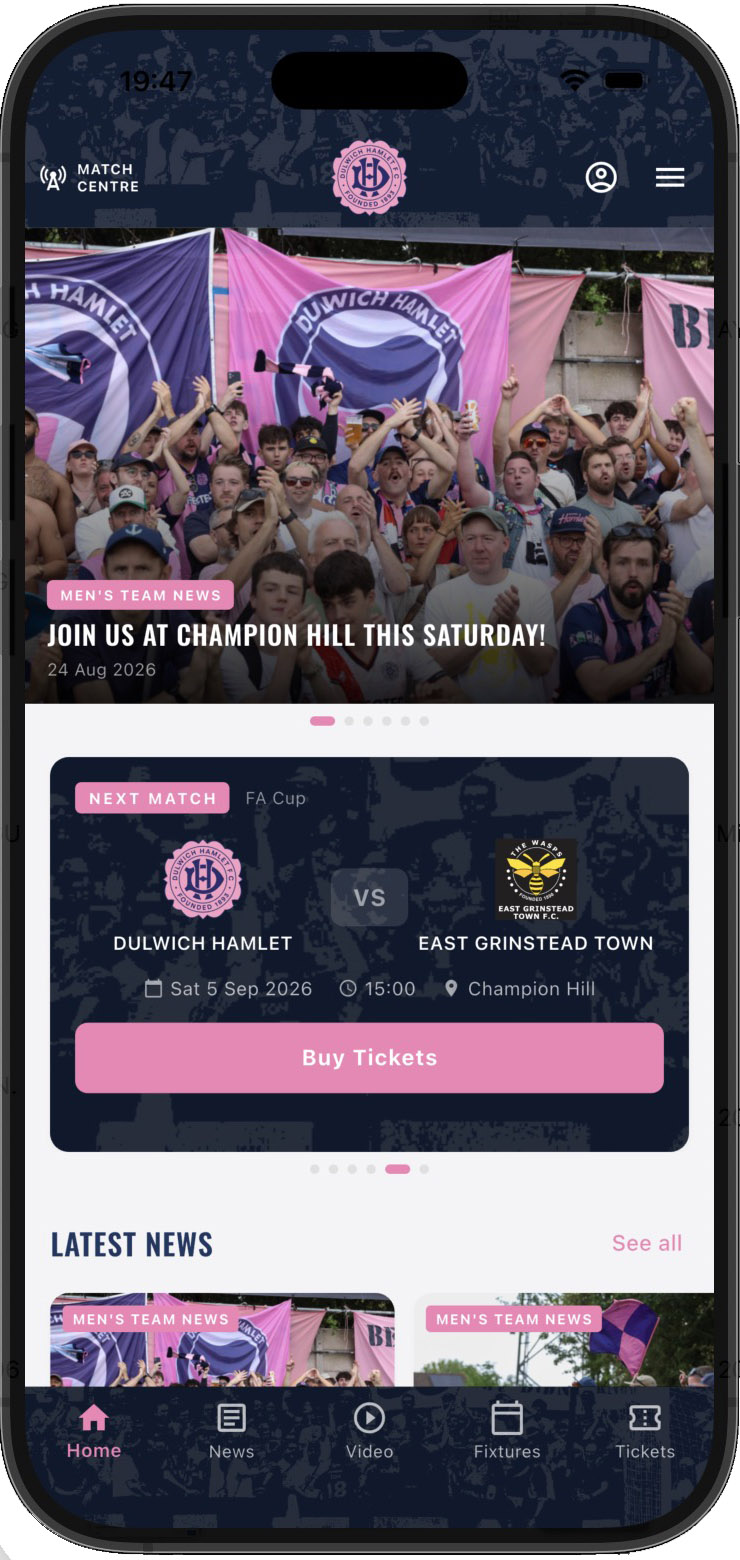
When it is activated it will appear in the big square panel on the image montage at the top of the home page.

To activate the page you will need to go to articles and put 'Live Radio in filter at the top.
This will show the article in the list

Click onto the article. We then need to update the game to the current match so change the title then change the status to 'published'. This will make it live. After the game, change the status to unpublish to take it off the front page.

We then need to go to the 'publishing' tab and remove the dates from the boxes and click save. This will reset the article to the current date.
If you want to set all this up in advance of the match you can use the 'start publishing' and 'finish publishing' fields to automate this for you. If you want to do this you must also change the created date/time to a hour before kick off so it appears in the first square on the front end display.

You will also need to add in the fixture and who is commentating on the day in the Live Radio tab.

Finally you will need to change the home page image depending on whether it is a men's or women's game. Change the intro image only on this page.

You can find the images in the live_radio folder in the images file.

Once the game is underway you can update the live scores from either your laptop on your mobile phone.
You can add the score to the fixture box , add the scorers and change the status of the game.
The following status are available:
Half Time
Full Time
Extra Time being Played
At Extra Time
Extra Time being Played
To access this from your mobile phone make sure you are logged in, find live radio on the menu, click the Live Radio tab in the article (near the bottom of the screen) and you can update the fields there.
Changing the upcoming fixtures on home page
To change these you will need to log into the back end and go to 'content then 'modules'
You can filter the modules by putting 'game' into the filter and it will bring up the three modules that represent the three boxes on the front page.

Click on the module you want to change and when that has loaded click the 'clear' button to remove the previous one. Click select and it will list the articles. You may want to filter this by the opposition team name to find it. Click save and then do the same to the 'game 2' and 'game 3' modules. Please make sure both men's and women's games are on there but not the reserves (for the moment)

Posting a News Article
To post a news article go to articles and click 'new'.
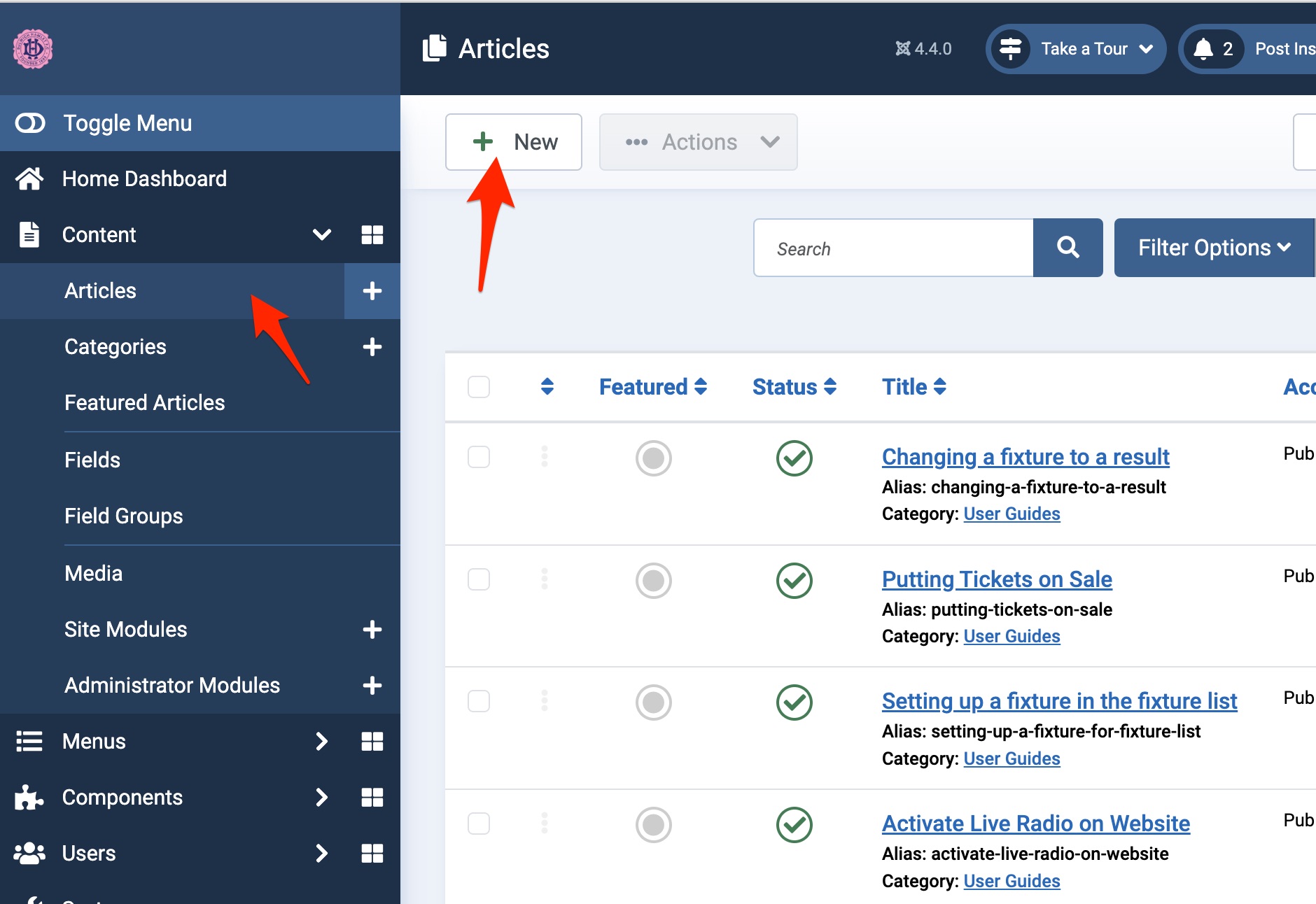
Give the article a title and slect the category for the following:
1) Men's Team News
2) Women's Team News
3) Club News
Then in the main panel enter your content and format it.
Click the 'featured' button if you wish it to appear on the front page image montage at the top.
To add an image click on the Thumbnail and Article Image Tab and the click the select tab. You will need to upload the image to media manager for the first select, then for the second one you can set it from your already uploaded image in media manager. The first image is the thumbnail and the second is the image that will appear within the article.

The following screenshot is of the media manager. Please save your images in the folder year/month to keep it all tidy. Please see example.

Once all that is done you can save the article and it will be published.
IMPORTANT! When you have uploaded an image, please check the front end of the website to make sure it looks OK. Landscape images work best. Try and avoid square and portrait images for thumbnails. If the image looks bad, please choose another one.
Changing a fixture to a result
Once a game has been played we will need to change the fixture to a result.
Go to articles and filter the opposition team.
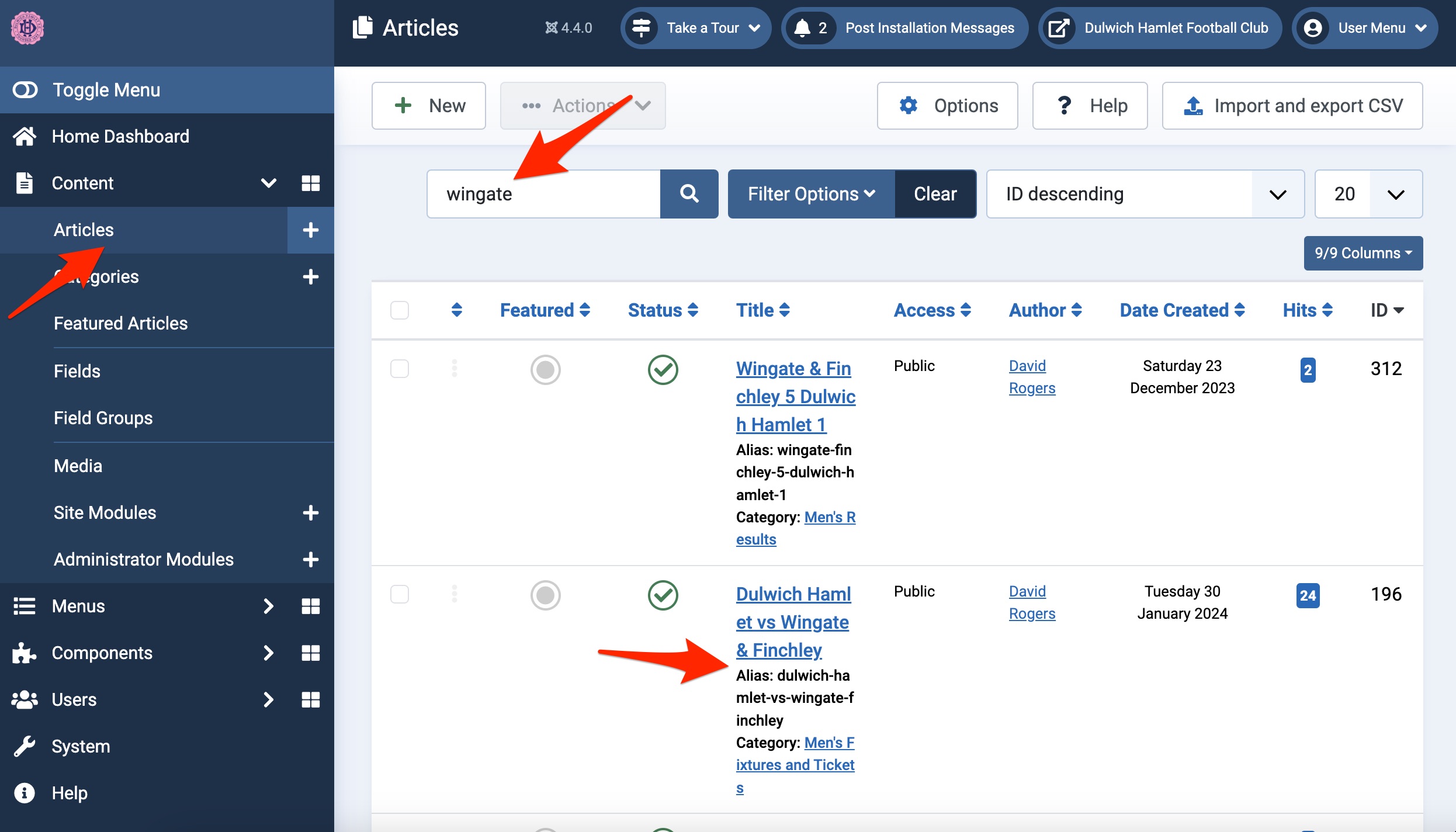
Change the article title to reflect the score eg Dulwich Hamlet 1 Wingate & Finchley 0 then remove anything that is in the Alias box. Then change the category from Men's fixture to Men's results or Women's Fixtures to Women's Results and then click on fixtures.

On the fixture tab head down to the attendance and enter the figure then fill in goalscorers/match notes. You can also add additional information for example 'match abandon due to' if it is an important element of the game. If a game ends in penalties, please put the penalty score in.

Click save and this will move the fixture from the fixtures page to the results page.
Putting Tickets on Sale
The fixture list will by default not show a 'buy ticket' button. You will need to go into the fixture to enter the URL.
Go to articles, put the opposition in the filter at the top and find the fixture then click on it.

Click on the fixture details tab, then scroll down until you see the ticket link box, then enter URL and save. This will add a 'buy ticket' button to the website. To take it off deleted the link and click save.

Ticket link


Address
Champion Hill Stadium,
Edgar Kail Way,
East Dulwich,
London.
SE22 8BD.
Information
Social Media